How to Connect to CU Boulder Guest WiFi (2026)
Two speed tests in the same CU building, taken ten minutes apart, told the whole story: 35 Mbps down at the edge of a research wing, then 87 Mbps down in the lunch room directly beneath an access point — same network, same login, identical 5–6 ms ping. CU Boulder's guest WiFi is faster and more usable than the email-and-password captive portal makes it look, but only if you know how to get on it and where to sit once you do.
How CU Guest WiFi Works
CU Boulder runs a public network called CU Guest alongside its credentialed networks. When you join CU Guest and open a browser, a captive portal titled "Welcome to CU Boulder!" loads and asks who you are. There are two paths from that screen, and picking the wrong one wastes time.
If you have an IdentiKey — students, faculty, and staff — the portal steers you toward CU Secure instead, the credentialed network that lasts about two years per sign-in and uses a certificate installed from wifi.colorado.edu. Guests and visitors take the other path: a short registration form that emails you a temporary username and password. The portal also keeps a "forgot my guest password" recovery link, which is handy because, as you'll see below, these credentials expire on a schedule.
The important thing to understand before you start: CU Guest is not a one-click open network. You cannot tap "connect" and start browsing. You register, CU emails you credentials, and you log in with those. Budget two or three minutes for the round trip, and make sure you can reach the inbox of whatever email address you register with.
Registering for a CU Guest Account
From the captive portal, choose "Register for CU Guest Wi-Fi" and fill out the short form:
- First name (required)
- Last name (required)
- Email address (required — this is where your credentials land)
- Mobile number (optional, with a +1 country prefix)
The step people miss: you have to tick the "I agree to the terms and conditions" box before the Register button turns on. If the button looks greyed out, that checkbox is why. The terms tie your use to CU's acceptable-use policy (APS 6005) and apply to any WiFi-capable device in range of an access point — laptop, phone, or tablet.
Once you submit, CU's Office of Information Technology emails back a guest userid and password. Enter those on the portal. On first login you'll be forced to change the password before you're online — set something you'll remember for the week, because you'll be typing it again each day.
What the Guest Credentials Actually Get You
The confirmation email from CU's Office of Information Technology spells out the fine print, and it's worth reading before you settle in for a long stretch:
- Valid for 7 days. After a week the account lapses and you re-register from scratch. This is real, not theoretical — a test account here stopped working at the end of its window and needed fresh credentials.
- Log in once per day. The session isn't permanent; you re-authenticate on the portal each day during that week.
- Up to 3 devices on one guest account, so a laptop, phone, and tablet can share a single registration.
If you're visiting for a single afternoon, none of this matters — you register once and forget it. If you're a recurring visitor without an IdentiKey, the seven-day clock is the thing to plan around: set a reminder, or just expect to fill out the form again the following week.
Real-World Performance: Two Speed Tests, One Building
Numbers from a marketing page don't tell you whether you can actually work on a network. These two Ookla runs, taken the same morning in the Marine Street Science Center (building RL6) — a research wing on the edge of CU Guest coverage, not central campus — do.
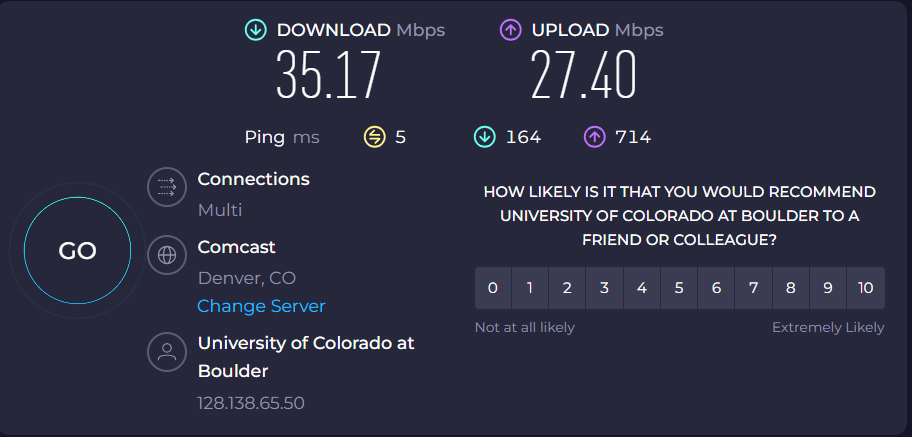
At a desk in the research wing, near the limit of the signal: 35.17 Mbps down, 27.40 Mbps up, 5 ms ping. Idle latency was excellent; under load, upload latency climbed to around 714 ms (mild bufferbloat), but nothing you'd notice on a call.
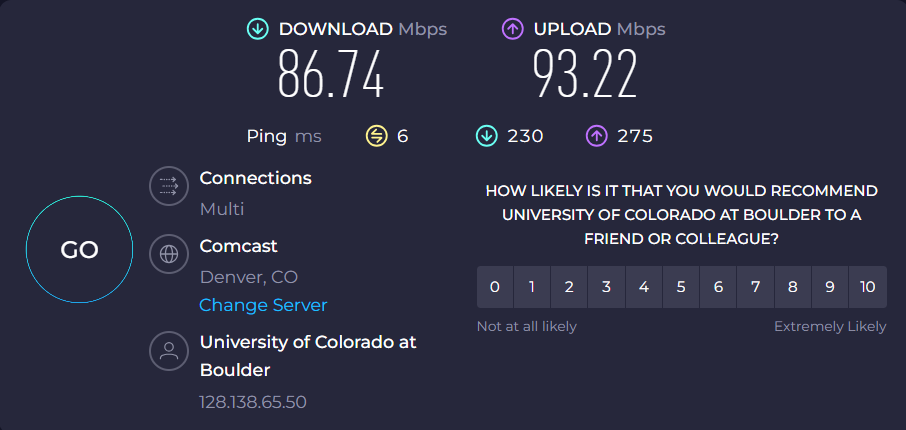
Ten minutes later, in the lunch room directly under a ceiling access point: 86.74 Mbps down, 93.22 Mbps up, 6 ms ping — roughly 2.5× the throughput of the edge desk, with the same ~5–6 ms ping. The network didn't change. Proximity to the access point did.
The reliability test was less about numbers and more about the work: across that week, the edge-of-coverage desk carried multiple Teams video calls over a VPN without dropping. If a weak corner of campus can hold a VPN'd video meeting, the core — libraries, the UMC, central classroom buildings — has bandwidth to spare.
Where CU Guest Reaches, and Where It Fades
Coverage extends past the obvious places. The test building above is a peripheral research facility, and CU Guest still connected there — just weakly. The pattern is what you'd expect from a large campus deployment: strong and fast in high-traffic interior spaces, thinner at the edges and in older or research-occupied wings.
Two practical takeaways:
- Sit near a visible access point. The white pucks on the ceiling are the difference between 35 and 87 Mbps. A common area or a seat under a beacon beats a tucked-away corner every time.
- The edge still works. If the only seat is in a far wing, take it — even the weak edge held video calls all week. You don't need to chase a perfect signal to get real work done.
For long sessions, the campus libraries are the safe bet. Norlin Library is the central spot for studying, with strong coverage throughout (its public hours shift by semester — check libraries.colorado.edu before you go).
Tips for Getting Online Fast
- Register before you need it. Do the form on your phone's cellular data so you're not stuck waiting for the credential email on a network you can't reach yet.
- Watch the checkbox. The Register button stays disabled until you accept the terms — the single most common reason people think the form is "broken."
- Save your credentials. You'll re-enter them daily for a week. A note in your phone saves you a "forgot password" detour.
- Plan for day 8. When the seven-day window closes, re-register. There's no renewal — it's a fresh form.
More Boulder WiFi
Looking for spots beyond campus? See our round-up of the best free WiFi near CU Boulder, which maps the libraries and cafés within walking distance of the Hill. For a study session that needs to hold, the Norlin Library page has the details, and the full WiFi directory covers the rest of town.
The CU Guest registration steps, credential policy, and both speed tests above were confirmed firsthand on the network on 2026-06-03.
References
- CU Guest — CU Boulder Office of Information Technology — Tier 1. CU Guest registration process and 7-day credential validity. Accessed 2026-06-10.
- CU Guest FAQ — CU Boulder OIT — Tier 1. Guest-vs-CU Secure guidance and credential renewal. Accessed 2026-06-10.
- University Libraries Hours — CU Boulder — Tier 1. Norlin Library seasonal hours. Accessed 2026-06-10.
Posts in this series
- Co-Working vs Coffee Shops in Boulder
- Boulder Parks With Free Public WiFi
- Boulder Public Library WiFi Guide
- CU Boulder Off-Campus WiFi Guide
- Best Spots for Remote Work in Boulder, CO
- Free WiFi in Boulder: Complete Guide
- Best Coffee Shop WiFi in Boulder
- Best WiFi Spots in Downtown Boulder
- Best WiFi Spots in North Boulder (NoBo)
- Best Free WiFi near CU Boulder
- How to Connect to CU Boulder Guest WiFi (2026)
- Best Free WiFi at Twenty Ninth Street Boulder (2026)
- Best WiFi on University Hill (The Hill) in Boulder
- Best Hotel WiFi in Boulder, CO (2026)
- Best WiFi in East Boulder — East Pearl & 30th St
- Free WiFi at Boulder Libraries (2026)
- CU Boulder Move-In Weekend WiFi Guide (2026)
- Back-to-School WiFi Checklist for CU Boulder Students
- Best Brewery and Taproom WiFi in Boulder
- Best Late-Night WiFi in Boulder
- Best Pearl Street Dinner Spot WiFi in Boulder
- Best Quick-Lunch WiFi Spots in Downtown Boulder
- Best International Restaurant WiFi in Downtown Boulder
- Best Brunch WiFi Spots in Boulder
- Best Study-Spot Wi-Fi Near CU Boulder Off Campus: Cafes, Libraries, and Co-Working
- Free Wi-Fi on Pearl Street: Which Cafes, Shops, and Public Spots Actually Have It